How to Organize and Manage Hundreds of QR Codes
How to manage multiple QR codes without losing track of them: naming rules that sort themselves, grouping by client or print run, and bulk edits to 200 codes.
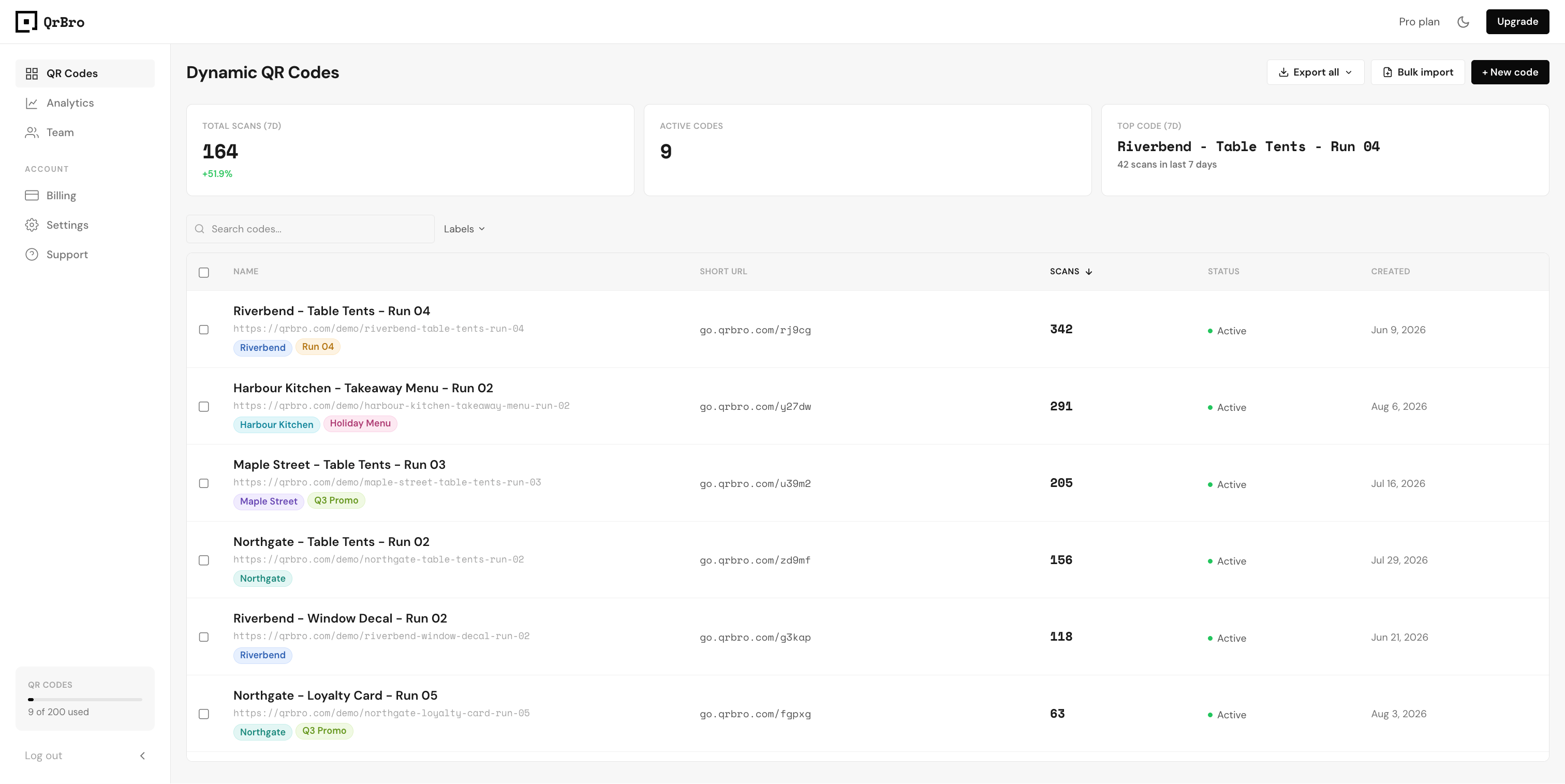
One agency account holds codes for nine clients. A restaurant group runs codes across fourteen locations. A print shop has four runs open at once. The codes work fine. Finding the right one does not.
Every row looks like every other row. The names were typed in a hurry, four of them say "menu", and the only way to reach the code whose destination has to change is to scroll and squint.
That is a management problem, not a QR problem. Knowing how to manage multiple QR codes comes down to four things working together: naming, sorting, labels, and bulk actions. Naming makes the list sort itself. Labels cut it by client, location, or run. Filtering gets you to one code. Bulk actions change fifty at once instead of fifty times.
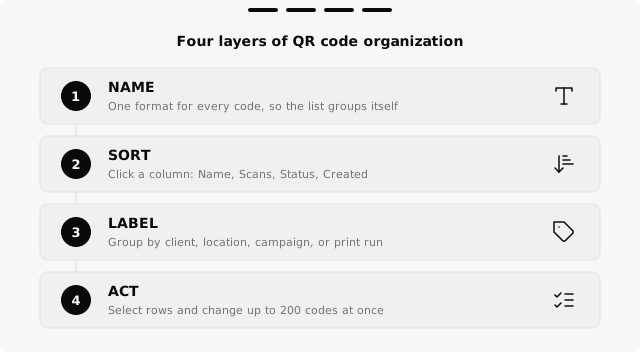
How to manage multiple QR codes: name them so the list sorts itself
Naming costs nothing on any plan, and you get up to 50 characters per name. Four rules:
- Lead with the stable thing, not the changing thing.
Riverbend - Table Tents - Run 04sorts next to its siblings.Table tents (new)sorts next to nothing. - Keep the separator consistent. Name sorting is alphabetical and case-insensitive, so one stray format drops a code out of its group.
- Put the run number last and pad it.
Run 04sorts beforeRun 12.Run 4does not. - Never put the destination in the name. Destinations change. That is the whole point of a dynamic code.
The codes table sorts on click across four columns: Name, Scans, Status, and Created. The list reorders the moment you click. Clicking a header cycles descending, then ascending, then back to the order the page loads in. On a phone the table shows Name and Scans; Status and Created are desktop only.
Group codes with labels
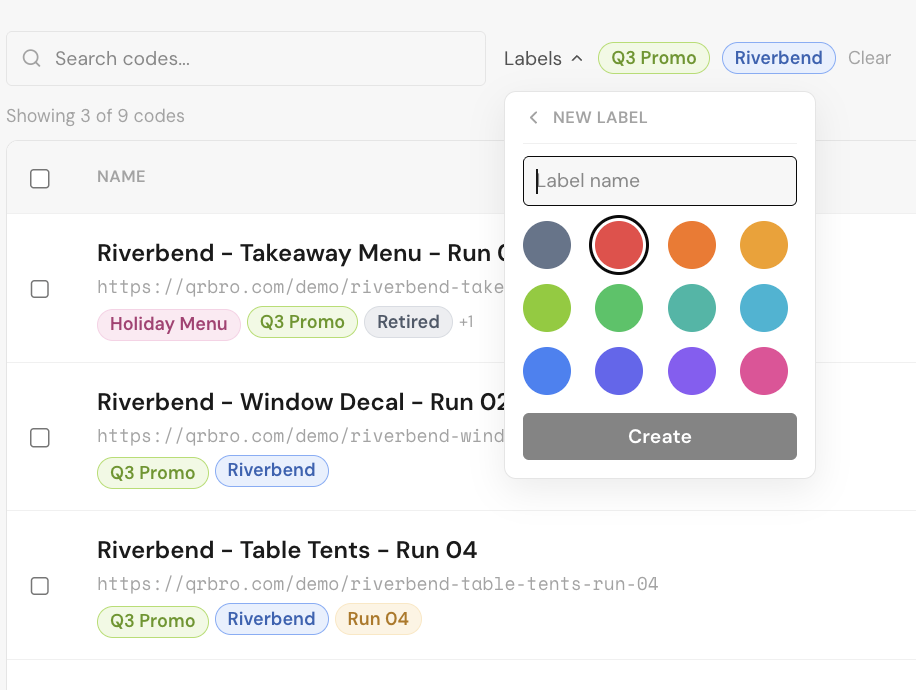
A label is a short name, up to 20 characters, in one of twelve preset colours. A code can carry up to ten, and a row shows the first three as pills plus a +N counter for the rest.
Labels belong to the team, not to whoever made them. Any member can create, rename, recolour, or delete one, and everyone sees the same set. Deleting a label pulls it off every code that carried it; the codes stay untouched.
Four things worth labelling:
- Client or location. One label per client, one per branch. This is what makes a single account workable when you run codes for multiple clients.
- Campaign or season.
Q3 Promo,Holiday Menu. Useful while the campaign runs, then it tells you what to retire. - Print run. Ties a set of codes to the physical thing they were printed on, which is what you need when a run gets reprinted.
- Status.
Live,Retired. A retired code still redirects, so the label is how you remember it should not be in circulation.
Do not label anything the code already stores. A label for the destination URL or the creation month is one you maintain forever for information the table already shows. Labels are for what the system cannot know: client, run, campaign.
Labels start on Starter, which allows 5. Pro allows 25 and Business 100. Free accounts do not get them at all.
Pick a colour system before your fifth label, not your fiftieth. One hue per client and a single grey for retired beats choosing a colour each time.
Find one code in two clicks
The search box and the Labels filter appear together as one control row, once the account has seven or more codes or as soon as the team creates its first label, whichever comes first. Below that, neither shows.
The label filter is multi-select, and it is AND, not OR. Selecting Riverbend and Run 04 narrows the list to codes carrying both labels, not either one. This is the part people get wrong first time.
Search text and label filters compose. Type "table" with two labels active and the "Showing X of Y codes" line reflects all of it. A filter always runs against your whole list.
Label pills on a row are buttons. Clicking one toggles that label in the filter without opening the code, which is usually the fastest way to the rest of a client's codes.
Change fifty codes at once
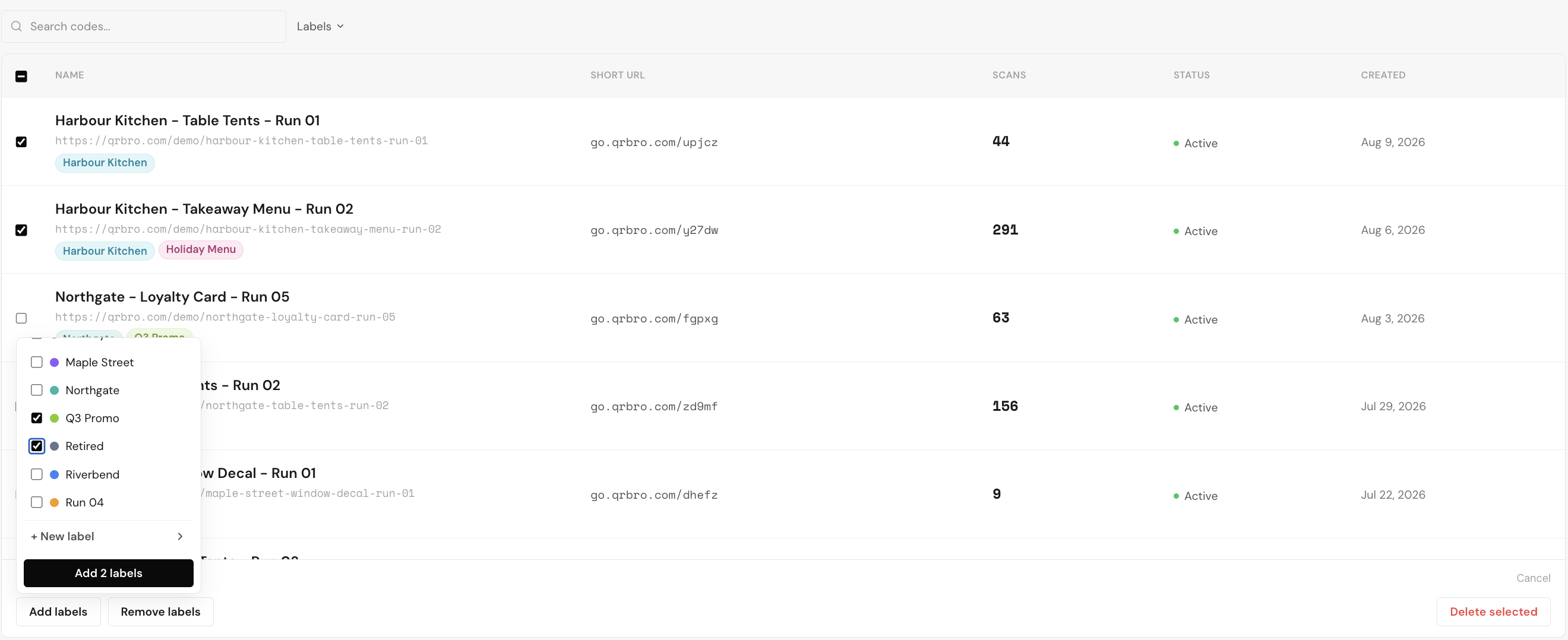
Checkboxes sit in the first column. Tick rows one by one, or use the header checkbox to take everything currently visible, which means the filtered set when a filter is on. Any selection opens the Bulk Actions toolbar with a count.
Add labels and Remove labels are separate buttons on purpose: across a mixed selection there is no single correct end state, so the product does not guess one. Each opens a checkbox list where you can tick more than one label and apply them together; the button reads Add 2 labels or Remove 2 labels. One bulk action covers up to 200 codes.
In practice: an agency onboards a client and imports 60 codes from a spreadsheet. Select all 60 with the header checkbox, open Add labels, tick the client label and the print run label, apply once.
Changing the search text or toggling a label filter clears the current selection. Re-sorting does not.
Delete selected sits in the same toolbar and it is permanent. The codes stop redirecting, so any printed code pointing at them stops working, and their scans leave your analytics too. Only the team owner can delete codes; everyone else sees the button disabled.
What you get on each plan
Naming and sorting are free. Labels are the line: Free accounts do not get them, and row selection needs a paid plan too. Three codes are easy to keep straight without either. Once you work for more than one client, that limit is what moves most accounts to Starter at $4.99/month.
| Plan | Labels | Dynamic QR codes | Bulk create (XLS, CSV) | Data export (XLS, CSV) |
|---|---|---|---|---|
| Free | Not available | 3 | No | No |
| Starter | 5 | 20 | No | No |
| Pro | 25 | 200 | Yes | Yes |
| Business | 100 | 1,000 | Yes | Yes |
Row selection and bulk actions work on every paid plan once you have two or more codes.
Pick a naming format today and apply it to what you already have, then add labels for the two things you actually filter by. A few hundred codes stay manageable when the list answers the question before you go looking.
Create your first dynamic QR code, it's free
Get StartedRelated guides
How to Bulk Create and Export QR Codes from a Spreadsheet
Upload a CSV or Excel file, generate hundreds of dynamic QR codes at once, and export them as print-ready PNG or SVG files with auto-numbered labels. Full walkthrough with QrBro Pro.
LearnHow to Change a QR Code URL Without Reprinting
Already printed your QR code? You can still change where it goes. Here's how to update a QR code destination without reprinting anything.