How to Bulk Create and Export QR Codes from a Spreadsheet
Upload a CSV or Excel file, generate hundreds of dynamic QR codes at once, and export them as print-ready PNG or SVG files with auto-numbered labels. Full walkthrough with QrBro Pro.
Making 50, 100, or 500 QR codes one at a time is a production bottleneck. Each code needs a unique destination, a printable label, and a way to track scans. This guide walks through doing all three from a single spreadsheet upload, whether you're labeling table tents, retail SKUs, event badges, or industrial inventory.
The whole workflow takes under two minutes once your spreadsheet is ready.
What you need before you start
Three things:
- A spreadsheet with at least one column of destination URLs. CSV, XLS, or XLSX. Up to 500 rows per upload.
- A QrBro account on the Pro plan or higher. Bulk import is a Pro+ feature at $14.99/month. Free accounts are capped at 3 codes and don't include bulk import.
- A printer or print shop. This guide covers SVG (vector, best for large prints) and PNG (raster, 512 / 1024 / 2048 px options).
That's it. No other setup.
Preparing your spreadsheet
Your file needs one required column and one optional column.
Required: url. Each row is a destination URL. URLs must be valid and include https://. Rows with malformed URLs are flagged during import and skipped.
Optional: name. A short label shown in your dashboard and used in the export filename, so you can find a specific code later without guessing. Both headers are case-insensitive.
Each row becomes one QR code with its own unique short URL on go.qrbro.com. Max 500 rows per upload. If you need more, split the file and upload in batches.
Here's a minimal example:
url,name
https://example.com/product/001,Product 001
https://example.com/product/002,Product 002
https://example.com/product/003,Product 003
You don't have to build this from scratch. The bulk import dialog in the dashboard has a downloadable CSV and XLSX template with the headers already in place.
Keep the name field short and unique. It shows up in the export filename as {name}-{slug}.svg, so "Table 12" is easier to spot in a zip than "QR code for restaurant table number twelve."
Uploading and creating the codes
Once your file is ready, importing takes about 30 seconds.
- Log into QrBro and go to your codes dashboard.
- Click
Bulk importin the top right of the codes list. - Drag the spreadsheet into the drop zone, or click to browse.
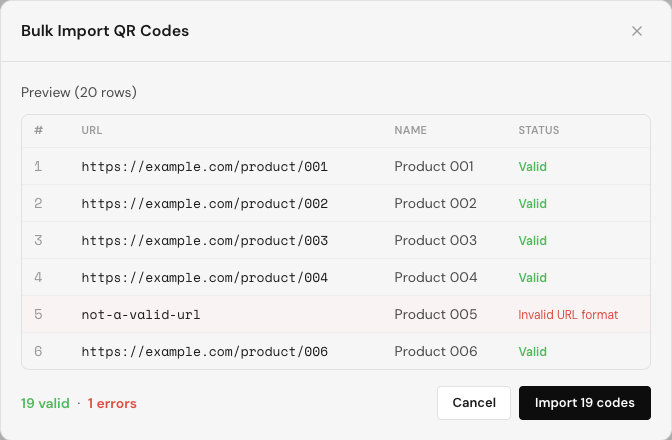
- A preview table appears with every row and its validation status. Good rows show
Validin green. Bad rows show a specific reason in red, likeInvalid URL format. The summary line at the bottom readsN valid · M errors. - Click
Import X codesto create them all at once. - Codes appear in your dashboard, each with a unique short URL like
go.qrbro.com/xyz.
Partial success is handled cleanly. If 47 of 50 rows are valid, the import creates the 47 valid ones and skips the 3 bad rows with a reason listed for each. You don't have to re-upload the whole file to fix errors. Correct the three bad rows in a separate upload when you're ready.
Exporting QR codes as print-ready files
This is where the work pays off. From the codes list, click Export all, then Download QR codes. The export dialog opens with a two-pane layout: live thumbnail previews on the left, configuration on the right.
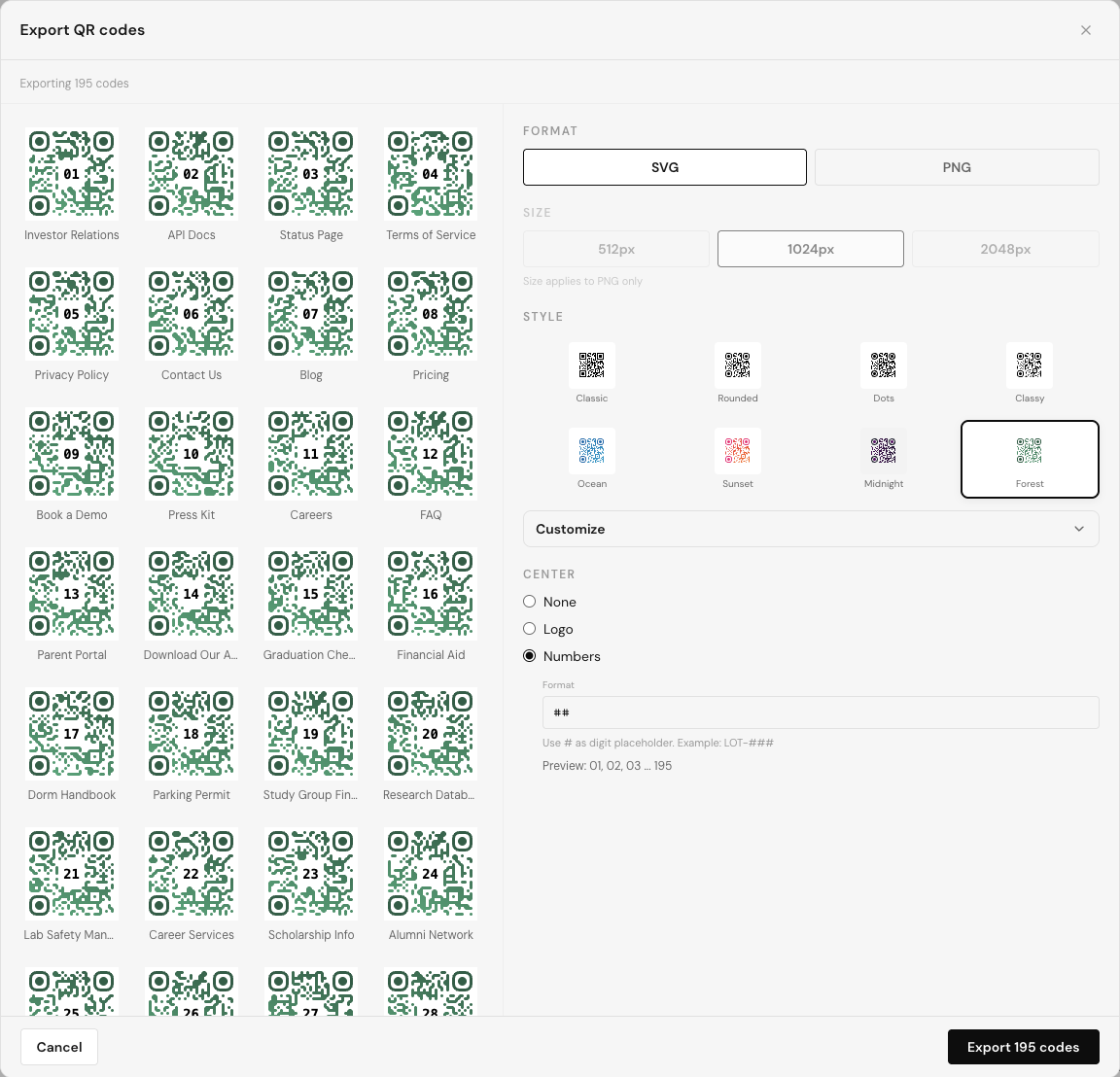
Format. SVG is the default. It's vector, scales to any size without quality loss, and is the right choice for signage or large prints. PNG is available at 512, 1024, or 2048 pixels for web display or when your printer specifically asks for raster.
Style. Eight presets cover classic black-and-white, rounded, dotted, and gradient looks. Pick Custom if you want to set dot shape, dot color (solid or gradient), and background (solid or gradient) yourself.
Center slot. Three options:
- None. Clean QR code, no center element.
- Logo. Upload a PNG, JPG, or WebP up to 2 MB. Size is adjustable from 20 to 50 percent of the code.
- Numbers. Auto-label each QR with a user-defined template.
The Numbers mode is the workhorse for bulk runs. Every # in your template is replaced with the row number, zero-padded to the count of hashes. Some examples:
- Template
##produces01, 02, 03and so on. - Template
LOT-###producesLOT-001, LOT-002, LOT-003. - Template
TABLE-##producesTABLE-01, TABLE-02.
The format field shows a live preview of the first and last labels, for example Preview: 01, 02, 03 ... 195, so you can verify the template before exporting. Every sticker ends up visually unique and readable as a label even before anyone scans it.
Download. Click Export N codes, watch the progress bar, and qrbro-qr-codes.zip downloads to your machine. Inside the zip, each file is named {name}-{slug}.svg or {name}-{slug}.png so names stay predictable when you hand the batch to a print shop.
Two hundred new rows is a lot to scroll through later, so it's worth reading how to organize and manage hundreds of QR codes once the batch is in your dashboard.
Why dynamic codes matter for bulk runs
Bulk printing is expensive. Reprinting because a URL changed is more expensive. Every code created through bulk import is a dynamic QR code, which means the printed pattern never changes but the destination URL can.
Print 500 product labels today. Three months from now, the product URL changes. Update the destination from the dashboard and every printed sticker keeps working. No reprint, no downtime.
Scans are tracked too. Scan count, rough location, device, and timestamp are available in your analytics. Retention depends on plan: 7 days on Free, 90 days on Starter, 1 year on Pro, unlimited on Business.
Frequently asked questions
Can I bulk create QR codes on the free plan? Bulk import is a Pro+ feature. Free accounts can create up to 3 codes manually. Pro at $14.99/month includes bulk import and 200 codes.
What's the maximum number of codes I can bulk import at once? 500 rows per upload. For larger batches, split your spreadsheet into multiple files and upload them sequentially.
Can I edit a code's destination after bulk importing? Yes. Every code created through bulk import behaves exactly like a manually created one. Destinations stay editable for the life of the code.
Do exported QR codes include the auto-numbered labels? Only if you select the Numbers center mode in the export dialog and provide a template. The labels are baked into each exported file.
What file formats are supported for bulk import? CSV, XLS, and XLSX. A template for each format is available from the bulk import dialog.
Can I use logos instead of numbers in the center of each code? Yes, but one or the other per export, not both. Upload a PNG, JPG, or WebP up to 2 MB.
Ready to run a real batch?
Bulk import is live on Pro and Business plans. Start free to test the workflow on a small spreadsheet, then upgrade when you're ready to push a real batch of 200 or 500 codes through. See full pricing for plan limits and scan retention.
Create your first dynamic QR code, it's free
Get StartedRelated guides
Dynamic vs Static QR Codes: What's the Difference?
Learn the difference between static and dynamic QR codes, when to use each, and why dynamic codes are better for business.
PracticalHow to Organize and Manage Hundreds of QR Codes
How to manage multiple QR codes without losing track of them: naming rules that sort themselves, grouping by client or print run, and bulk edits to 200 codes.