How to Create a QR Code for a PDF
Turn any PDF into a scannable QR code in three steps. Host your file, copy the link, paste it into QrBro, and download your code.
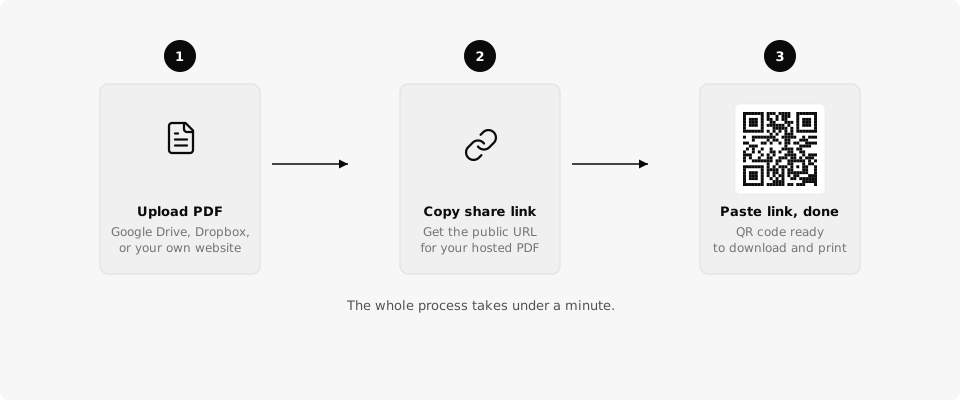
You have a PDF (a menu, a brochure, a price list) and you want people to scan a QR code to open it on their phone. The trick is that QR codes link to URLs, not files. So you need to get your PDF online first, then point a QR code at the link.
Step 1: Host Your PDF Online
A QR code needs a URL to point to. That means your PDF has to live on the internet with a public link. You have a few good options.
Google Drive is the easiest. Upload your PDF, right-click it, choose "Share," set access to "Anyone with the link," and copy the link.
Dropbox works the same way. Upload the file, click "Share," create a link, and copy it. Change the dl=0 at the end to dl=1 if you want it to download directly instead of previewing.
Your own website is the cleanest option if you have one. Upload the PDF to your hosting and use the direct URL (something like yoursite.com/files/menu.pdf).
Pick a hosting method you can update later. If you upload a new version of the PDF to the same Google Drive link, every QR code pointing to that link will serve the new file automatically.
Step 2: Create the QR Code
Once you have a public URL for your PDF, generating the QR code takes about 10 seconds.
- Go to the QrBro homepage.
- Paste your PDF link into the URL field.
- Click generate. Your QR code appears instantly.
- Download the image in PNG or SVG.
That's it. Print it on your flyer, menu card, product packaging, or whatever you need.
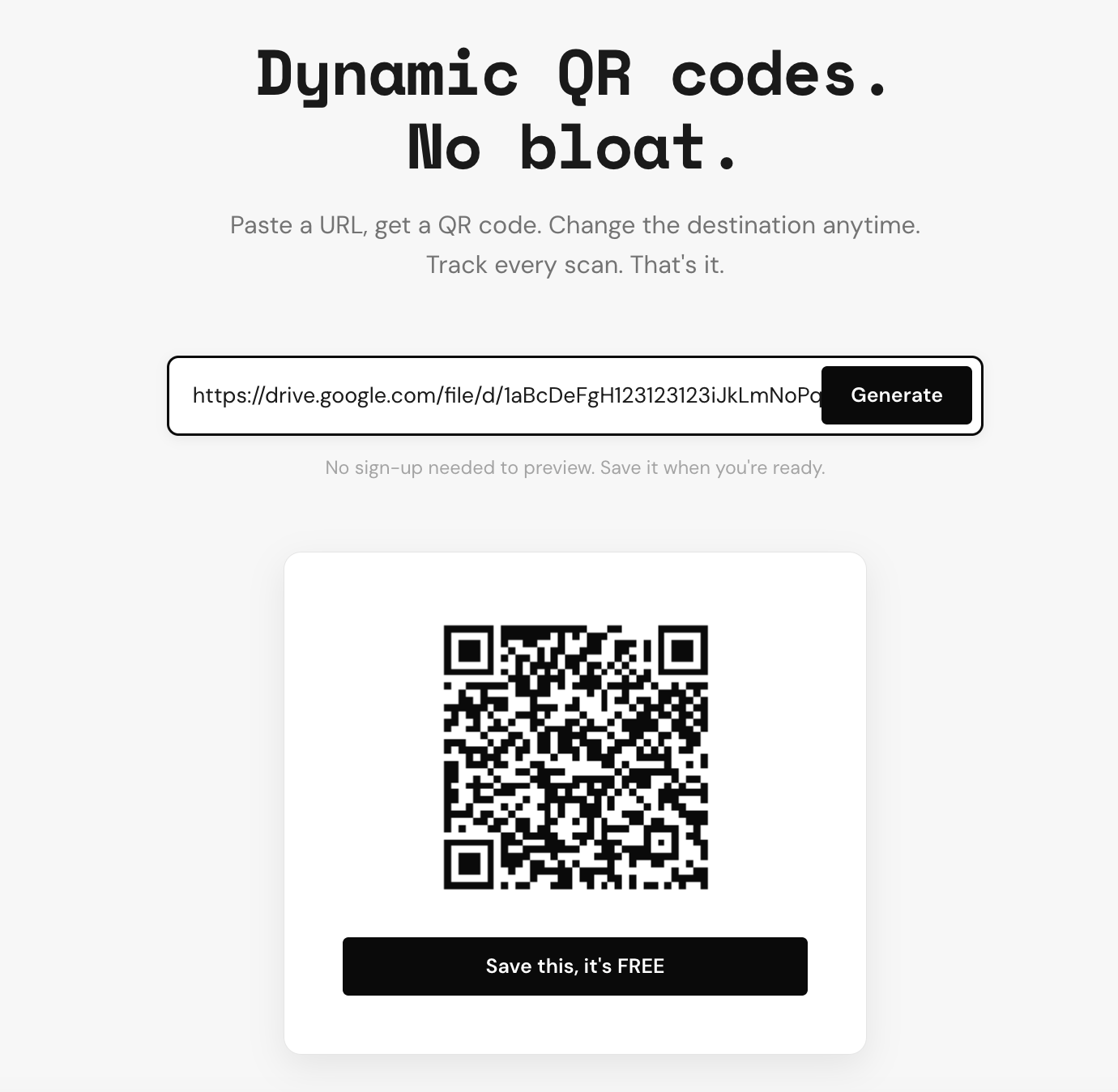
Every QR code created in QrBro is dynamic by default. You get scan tracking and the ability to change the destination later, even after printing.
Where to Host Your PDF
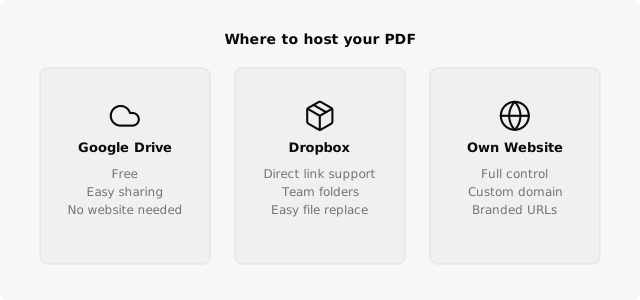
Not sure which hosting option fits your situation? Here's a quick comparison.
| Hosting Option | Best For | Direct Link? | Easy to Update? |
|---|---|---|---|
| Google Drive | Quick sharing, no website needed | Yes (with share link) | Yes, replace the file |
| Dropbox | Team files, shared folders | Yes (change dl=0 to dl=1) | Yes, replace the file |
| Your own website | Branded URLs, full control | Yes | Yes, overwrite the file |
If you're printing QR codes for a business, your own domain gives the cleanest URLs and the most control. But Google Drive works perfectly fine for most people.
What Happens When the PDF Changes?
This is where a dynamic QR code saves you. Say you printed 200 flyers with a QR code pointing to your spring menu. Summer arrives and the menu changes. You have two options:
Option A: Upload the new PDF to the same hosting link (replace the file in Google Drive or overwrite it on your server). The QR code still points to the same URL, so scanners get the new file. Nothing to change in QrBro.
Option B: The new PDF has a different URL. Log in to QrBro, find your code, and update the destination. Every printed code now points to the new file. No reprinting.
If you used a free static QR code (from our free generator or elsewhere), you can't change the destination after printing. You'd need to create a new code and reprint. Start with a dynamic code to avoid this.
Getting Started
The whole process takes under a minute. Host your PDF, copy the link, paste it into QrBro, and download your QR code. If the PDF ever changes, you can update the destination from your dashboard without reprinting anything.
Your QrBro dashboard also shows you how many people scanned the code, what device they used, and where they were. Useful for figuring out if anyone's actually reading that PDF.
For best results when printing, check the QR code size guide to make sure your code is large enough to scan reliably at the distance you expect.
Create your first dynamic QR code, it's free
Get StartedRelated guides
Dynamic vs Static QR Codes: What's the Difference?
Learn the difference between static and dynamic QR codes, when to use each, and why dynamic codes are better for business.
LearnHow to Change a QR Code URL Without Reprinting
Already printed your QR code? You can still change where it goes. Here's how to update a QR code destination without reprinting anything.